

Downloads Screen
The Downloads screen displays a list of downloaded sites.
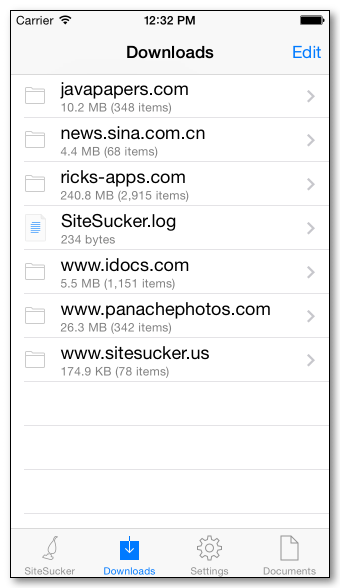
If you tap on a folder in the list, SiteSucker displays the corresponding site in a web browser. Folders that do not contain any bookmarks are disabled and cannot be selected. (See the Web Browser page for more information on bookmarks.)
If you touch and hold any folder in the list (enabled or disabled), the contents of the folder are displayed. If you tap on a individual file within the folder, SiteSucker displays that file in a web browser. If you touch and hold an individual file, the item is shown in a Quick Look preview. (This feature does not work with HTML or other files that cannot be previewed.)
The list may also include the SiteSucker.log file. Tap on this item to display errors, warnings, or other information that was logged by SiteSucker.
If you tap the Edit button, SiteSucker displays the Delete, Export, and Import buttons. To delete downloaded items, select them in the list and then tap the Delete button. The Export and Import buttons are used to transfer files between your iOS device and your Macintosh or PC. See File Sharing for more information.