Advanced - General
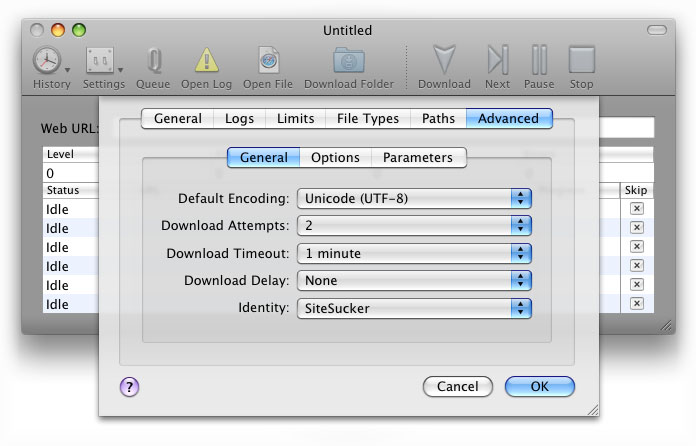
The General tab under the Advanced tab in the Download Settings dialog provides the following settings:
Default Encoding
Use this control to specify the default text encoding. If a Web page does not specify its text encoding, SiteSucker will try the default encoding first. Choose one appropriate for the language of the Web pages that you are downloading.
Download Attempts
Use this control to specify the number of times SiteSucker should attempt to download a file. By default, SiteSucker will only retry downloading a file if a timeout error occurs.
You can specify the errors that trigger a retry attempt by editing the property list found in your home folder at ~/Library/Application Support/SiteSucker/RetryErrors.plist. Your changes will take effect the next time SiteSucker is launched. If you delete this file, SiteSucker will replace it with a default property list the next time SiteSucker is launched.
Download Timeout
Use this control to select the length of time that SiteSucker should wait for a response from the server.
Download Delay
Use this control to specify the length of time that SiteSucker should delay before it downloads a file. This feature can allow you to download sites while using very little bandwidth and can help avoid anti-mining safeguards employed by some sites.
The delay can be set to None or to a fixed range of values (e.g., 20 - 40 seconds). If you select None, SiteSucker downloads the site as quickly as possible. If you select a delay range, SiteSucker will add a random delay (within the selected range) before it downloads a file. Furthermore, if a delay is specified, SiteSucker will only use a single active connection to download files since the whole purpose of using multiple connections is to reduce delays.
Identity
Use this control to customize the way SiteSucker identifies itself when making a request. Some sites are very particular about which browsers they will allow. You can you use this feature to "fool" the site into thinking that you are using an approved browser.
To change SiteSucker's identity, simply click on this control and select one of the Web browsers listed. (If you choose None, SiteSucker will not include any identifying information when making requests.)
You can customize the list of available Web browsers by editing the user agent property list in your home folder at ~/Library/Application Support/SiteSucker/UserAgent.plist. Your changes will be shown the next time SiteSucker is launched. If you delete this file, SiteSucker will replace it with a default list of user agents the next time SiteSucker is launched.